

Several settings can change how ChatGPT responds, how much context it retains, which information it can access, and how deeply it reasons through a request. Many people begin using ChatGPT without ever adjusting these options. As a result, the results may be…meh.
Save time. Make your content reflect your style. And stop having to input the same instructions time after time → These settings can help you make your AI copy more…you.
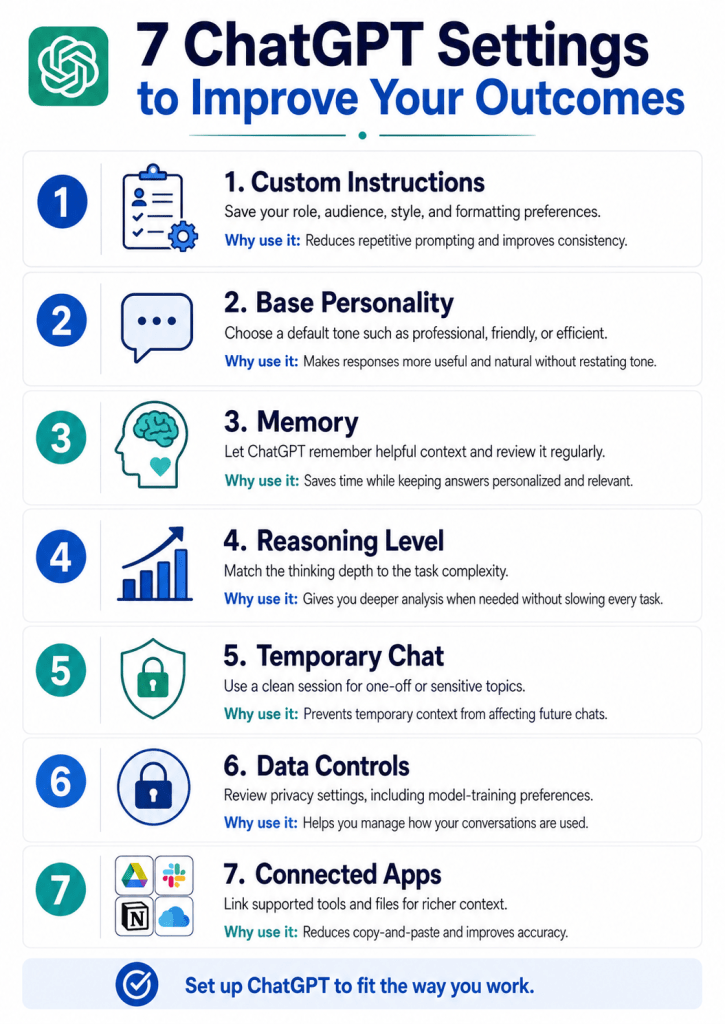
1. Add Custom Instructions
Custom Instructions let you provide standing guidance that ChatGPT should consider when responding. Instead of repeating the same requirements in every prompt, you can save them once under the Personalization settings.
On the web or desktop app, open Settings, select Personalization, and make sure customization is enabled. You can then enter information about yourself and instructions for how you want ChatGPT to respond. OpenAI says these instructions apply immediately across chats and are available on all ChatGPT plans.
Useful Custom Instructions might include:
- Your job, industry, or level of expertise
- Your preferred answer length
- Formatting requirements
- Words or writing habits to avoid
- The audience you usually address
- Whether ChatGPT should explain technical terminology
- Your preferred measurement system or geographic market
For example, a marketing consultant might specify that responses should be written for business decision-makers, use clear headings, avoid excessive bullet points, and distinguish facts from assumptions. A programmer might request complete code, error handling, comments, and explanations of important design decisions.
Custom Instructions should focus on preferences that apply broadly. Requirements unique to one assignment should still be included in that assignment’s prompt.
Why use it: Custom Instructions reduce repetitive prompting and help ChatGPT produce more consistent answers that reflect your role, audience, workflow, and communication preferences.
2. Choose a Base Personality
ChatGPT’s Personality setting controls the general style and tone of its responses. Depending on the options available in your account, you may be able to choose a personality that is more professional, friendly, efficient, candid, or expressive.
To change it, open Settings, select Personalization, and look for Base style and tone. Changing the personality affects how ChatGPT communicates, but it does not change its underlying capabilities or safety requirements. The selected personality also works alongside your Custom Instructions and saved memories.
Personality is different from telling ChatGPT to write a particular deliverable in a particular tone. For example, you can use a concise default personality while still asking ChatGPT to write a warm customer email or an energetic social media caption.
Choose the personality that best matches the majority of your everyday interactions. A business user may prefer a polished or efficient style, while someone using ChatGPT for brainstorming may prefer a more conversational approach.
Some users may also see Characteristics, a gradually rolling-out feature that provides more granular control over factors such as brevity, tone, formatting, and emoji use.
Why use it: The right personality makes responses easier and more pleasant to use without requiring you to specify the same tone in every conversation.
3. Turn On and Manage Memory
Memory allows ChatGPT to retain useful context from previous conversations, files, and supported connected apps. This can include preferences, recurring projects, professional background, or other information that helps personalize future responses.
Memory controls are available under Settings → Personalization → Memory. You can turn the feature on or off and review the Memory Summary to see what ChatGPT currently remembers. OpenAI also allows users to correct or remove information in that summary.
Memory is particularly useful when you regularly use ChatGPT for the same type of work. It might remember that you write for a technical audience, prefer concise introductions, work with a particular client, or want measurements presented in a certain format.
However, memory should not be treated as something you turn on and forget. Review it periodically for outdated, incorrect, or conflicting information. A preference saved six months ago may no longer reflect your current needs.
It is also important to distinguish Memory from Custom Instructions. Custom Instructions contain explicit standing directions that you enter. Memory develops from useful context shared during your interactions. Both can shape responses, and conflicting information can produce inconsistent results.
Why use it: Memory reduces the need to repeatedly explain your background and preferences, while regular reviews prevent stale information from quietly affecting future answers.
4. Select the Appropriate Reasoning Level
Not every request requires the same amount of analysis. A simple grammar correction or factual question may benefit from a fast response, while financial modeling, strategic planning, debugging, research synthesis, or contract analysis may require more deliberate reasoning.
Eligible ChatGPT plans can provide different reasoning levels through the model picker. Current options may include Instant, Medium, High, Extra High, or Pro, depending on the subscription and workspace. Users may also be able to enable or disable automatic switching between faster and more reasoning-intensive modes.
Using the highest reasoning level for every question is not necessarily the best approach. More reasoning can be valuable for complex work, but it may be unnecessary for routine requests.
A practical approach is to use:
- A faster mode for simple questions, summaries, rewrites, and brainstorming
- A medium reasoning level for most professional work
- A higher reasoning level for difficult analysis, comparison, planning, coding, or multi-step decisions
Even with a higher reasoning setting, the quality of the prompt still matters. Provide the objective, relevant facts, constraints, and desired output format.
Why use it: Matching the reasoning level to the complexity of the task can improve analytical depth without slowing down straightforward everyday requests.
5. Use Temporary Chat When Context Should Not Carry Forward
Temporary Chat creates a conversation that does not appear in your normal chat history, does not create new memories, and does not use existing memories to personalize the response.
According to OpenAI, Temporary Chats are not used to train its models and are deleted from its systems after 30 days, although they may be reviewed during that period for abuse monitoring.
Temporary Chat is useful when your request is unrelated to your usual work or when you do not want a one-time topic affecting future personalization. Examples might include:
- Reviewing a document outside your normal field
- Researching a sensitive personal question
- Testing a prompt without prior context
- Asking for advice on behalf of someone else
- Working on a confidential or unusual one-time topic
Temporary Chat should not be confused with deleting a normal conversation afterward. Starting with Temporary Chat prevents that conversation from entering your history or memory workflow in the first place.
It is still important to use appropriate judgment when sharing confidential information. Temporary Chat provides additional controls, but it should not replace an employer’s, client’s, or organization’s data-handling policies.
Why use it: Temporary Chat gives you a clean, context-free workspace for one-time or sensitive conversations that should not influence future responses.
6. Review Your Data Controls
ChatGPT’s Data Controls determine whether your conversations can be used to help improve OpenAI’s models. Signed-in users can find the relevant option under Settings → Data Controls.
Turning off Improve the model for everyone prevents new conversations from being used for model training. Those conversations can still remain in your chat history, and the choice applies across devices associated with your account.
This setting deserves particular attention from people who use ChatGPT for client work, internal business materials, unpublished content, proprietary processes, or other professional information.
Data Controls may also provide access to options for exporting account data or deleting the account. An occasional review can help ensure that your settings still match your privacy expectations and current use of the platform.
Disabling model improvement is not the same as using Temporary Chat. With model improvement turned off, regular conversations may still appear in your history and may still interact with Memory. Temporary Chat creates a separate session that does not enter those systems.
Why use it: Reviewing Data Controls lets you make an informed choice about how your conversations are handled while preserving the features you still want to use.
7. Connect the Apps You Regularly Use
ChatGPT can connect with supported third-party apps and services, allowing it to reference authorized information without requiring you to copy and paste everything into a conversation.
Available connections depend on your plan, device, region, and workspace permissions. Supported apps may help ChatGPT work with files, messages, calendars, project information, or other account-specific data. Connections can generally be reviewed and managed under Settings → Apps.
Connected apps can improve outcomes because they give ChatGPT access to more complete and current context. Instead of asking it to summarize a project from a few pasted notes, you may be able to authorize access to the relevant source material.
This can support tasks such as:
- Locating and summarizing documents
- Preparing for meetings
- Reviewing schedules
- Finding information across workplace systems
- Drafting responses based on existing communication
- Comparing information stored in multiple files
Only connect services you trust, and review the requested permissions before authorizing access. Disconnect apps you no longer use. When Memory is enabled, ChatGPT may also retain useful context accessed through supported connected apps, subject to the controls and restrictions associated with those services.
Why use it: Connected apps reduce manual searching and copying while giving ChatGPT more complete context for accurate, account-specific answers.

